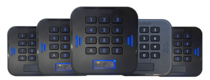
 LabKey Mini
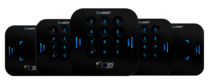 LabKey Glass
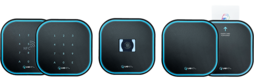 LabKey Next
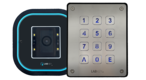 LabKey Extreme
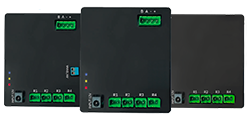 Wi-Fi & bluetooth connection
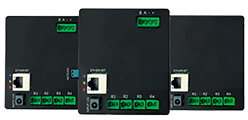 Wi-Fi / LAN Connection
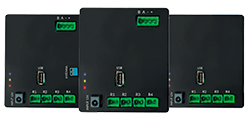 Wi-Fi / LTE Connection
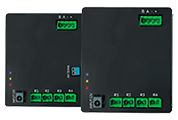 Local Network Connection
 KIT LABKEY ACCESS PRO 8
 For Bed & Breakfast
 Access Control for hotel
 Access control for GYM
 For Companies
 For Public Administration
 Access with payment solutions
 Some installations
 Manage Software
 Additional cloud feature
 App for remote control
 API and integrations


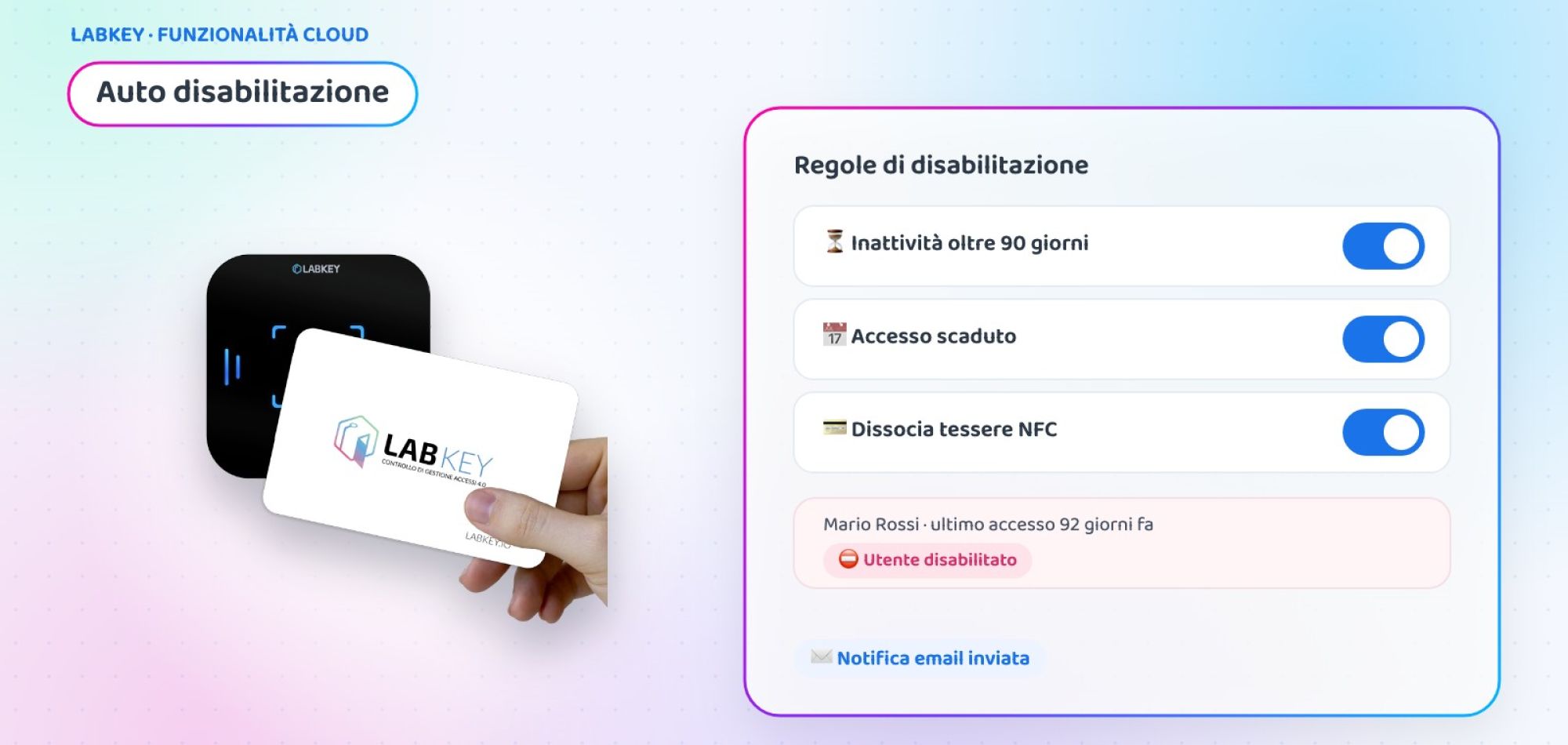
Automatic badge deactivation: inactive users and expired access disabled on their own
Former employees, collaborators at the end of a project, suppliers you have not seen for months: every badge left active for no reason is a risk. With LabKey’s automatic badge deactivation the system disables inactive users or users whose access has expired on its own and notifies you by email, with no manual checks on lists.
What is LabKey’s Automatic User Disabling
It is an additional feature of the Manage panel that automatically disables users based on two rules, which can also be activated separately:
Inactivity: choose a number of days. If in that period the user makes no access attempt, neither granted nor denied, they are disabled.
Access end date expiry: the user is disabled as soon as their access end date expires.
For both rules you can choose to unlink the NFC cards of the disabled user and set the email address the notification is sent to.
What happens when a user is disabled
Immediate security, without losing any data.
Access blocked
The user is fully disabled and can no longer enter.
NFC cards freed
If you choose, the cards are unlinked from the disabled user.
History intact
The user record remains and past logs keep the recorded details.
Email notification
You receive an alert at the address you prefer every time a user is disabled.
Accurate count
Every attempt, granted or denied, resets the days of inactivity.
Manual reactivation
If needed, you re-enable the user from the Manage panel in a moment.
How to activate automatic badge deactivation
Everything is set up from a single page of the panel.
⏳ Choose the rule
Enter the days of inactivity and/or activate disabling when the access end date expires. An empty field leaves the rule off.
💳 Decide on the cards
Tick “Unlink NFC cards” if you want to free the cards of disabled users.
📧 Set the notification
Enter the email the alert should be sent to and save: from then on, the check is automatic.
Case study: a company with 300 active badges
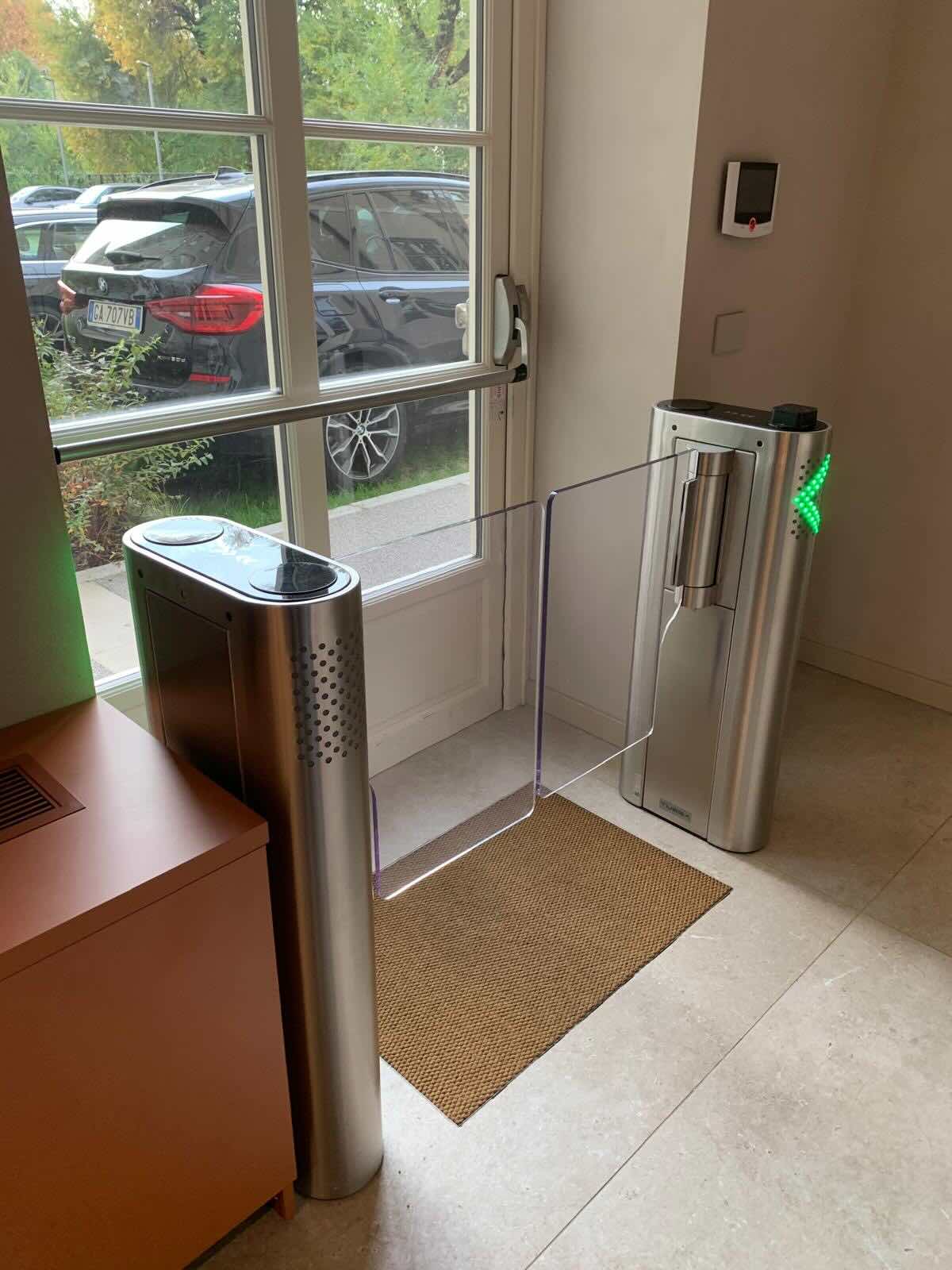
Company headquarters with turnstiles and offices
A services company manages around 300 badges for employees, project collaborators and suppliers. Staff change often and the lists are reviewed by hand, whenever someone remembers.
- Badges of former collaborators still active for months
- Collaborators with an expired contract who could still get in
- Long and unreliable manual checks
- A 60-day inactivity rule for all users
- Disabling on expiry of the access end date for collaborators and suppliers
- NFC cards unlinked and ready for new arrivals
- Email notification to the security office for every disabled user
💡 The added value
Example scenario, created to show a possible use of the feature.
🔒 How many unused badges do you still have active?
Tell us how you currently manage staff arrivals and departures: in a short call we will show you how to set up automatic deactivation on your panel.
📅 Book a free, no-obligation callWhere to use automatic badge deactivation
Wherever users change often and a forgotten access is a risk.
Companies
Employees, interns and consultants who leave the company. Corporate access control.
Gyms
Customers who do not renew and stop coming.
Construction sites and suppliers
External companies that finish their job.
Schools and universities
Students and teachers at the end of a course or academic year.
Healthcare facilities
Contract staff and temporary shift workers.
Apartment buildings and residences
Tenants who leave the apartment.
At a glance
| ⏳ Inactivity rule | Days without any attempt, granted or denied |
| 📅 Expiry rule | Disabling when the access end date expires |
| 💳 NFC cards | Optional unlinking for each rule |
| 🗂️ Data | User record and past logs remain unchanged |
| 📧 Notification | Email to the address you choose |
| 🔄 Reactivation | Manual, from the Manage panel |
Automatic User Disabling is one of the additional features of the LabKey cloud panel and is activated on your panel on request. To block access based on a document expiry date, such as a medical certificate, also discover custom fields.
Frequently asked questions about automatic badge deactivation
After how many days of inactivity is a user disabled?
You decide: on the plugin settings page you enter the number of days of inactivity. If you leave the field empty, the rule is not active.
Which access attempts count towards inactivity?
All attempts: both granted and denied access. A user is considered inactive only if they have made no attempt for the set number of days.
What happens to a disabled user?
They are fully disabled and can no longer access. If you enable the option, their NFC cards are also unlinked. The user record stays in the panel and past logs keep the details recorded at the time of access.
Can a user be disabled when their access expires?
Yes. With the “Disabling when the access end date expires” option, the user is automatically disabled when the access end date expires, again with the option to unlink the NFC cards.
How do you reactivate a disabled user?
Reactivation is done manually from the Manage panel. If you set a notification email address, you are alerted every time one or more users are disabled.
Want access that is no longer needed to close on its own?
Book a call with our team: we will help you choose the right rules and activate automatic deactivation on your panel.
📅 Book a free, no-obligation call 👉 All additional features
